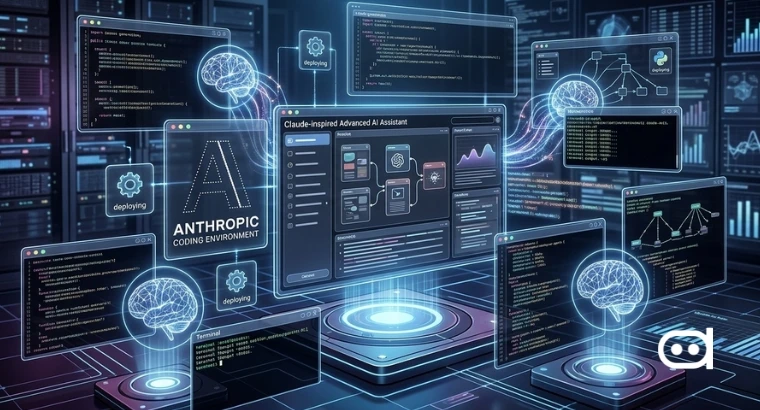
- Anthropic rolled out Agent View for Claude Code which gives developers a centralized terminal dashboard to handle multiple Claude coding sessions at once.
- You can run sessions in the background, switch between them live, approve requests inline, and monitor everything straight through the terminal with commands like claude agents, /bg, and claude attach <id>.
- Agent View lets developers organize parallel workflows and keeps long-running AI tasks running in the background.
The launch shows Anthropic wants to make coding workflows smoother for developers working in terminals. Instead of constantly switching different tabs or separate Claude sessions, you can now supervise every coding agent in one dashboard.
What is Claude Code Agent View?
Claude Code Agent View is a dashboard built into Claude Code so developers can organize and keep an eye on multiple coding sessions at the same time. Anthropic describes it as a centralized toolbox for tracking tasks, checking paused sessions, and directly managing background agents from the terminal.
You can reconnect to any active session anytime, respond to approval requests, and never have to restart your workflow. Agent View makes it easier to handle complex coding projects by cutting down the constant need to switch windows or keep track of running sessions by hand. Everything operates locally. If your machine powers off or sleeps, background sessions stop. Each session uses its quota independently, so it is recommended to keep an eye on your usage.
New in Claude Code: agent view.
— Claude (@claudeai) May 11, 2026
One list of all your sessions, available today as a research preview. pic.twitter.com/NnbsAQjSPW
Step-by-step tutorial to use Claude Code Agent View
Step 1: Open the Agent View dashboard
Start by launching the centralized dashboard in Claude Code. This dashboard is your main control hub, you can keep an eye on every active Claude session all from one place.
Step 2: Start a background session directly
You can create a new Claude Code session that runs in the background, so tasks keep moving even while you are handling other projects.
Step 3: Move an active session into the background
If you’re already working in a Claude Code session, you can shift it into the background. The task keeps rolling, and you can head back to the dashboard or even open more sessions.
Step 4: Monitor active coding sessions
Agent View lets you monitor every running session at once. Anthropic says the dashboard shows you which sessions are active, on standby, finished, or recently updated.
You’ll see session summaries and timestamps, so you can quickly tell which workflows are running smoothly and which need your attention.
Step 5: Check sessions waiting for user input
Agent View highlights sessions that pause because they’re waiting for approvals, clarifications, or extra instructions. You can review these paused sessions right from the dashboard, no need to reopen each workflow.
Step 6: Respond to approval prompts
You can answer approval requests directly within Agent View. This way, you can approve actions or clarify things while your other background sessions keep going.
Step 7: Attach to a running session
From the dashboard, you can reconnect to any active Claude Code session. Check outputs, review progress, or keep interacting with the workflow.
Step 8: Detach from the session and return to the dashboard
After you’re done reviewing or working with a session, just detach and head back to Agent View and the coding task keeps running quietly in the background. This makes it easy to juggle multiple workflows at once.
Step 9: Use Git worktrees for isolated workflows
Anthropic’s documents mention Git worktrees as a way to keep parallel sessions separate. This lets multiple Claude agents handle different branches or workspaces at the same time.
Step 10: Understand local execution limitations
Agent View sessions run locally through a supervisor process on your machine. If your computer goes offline, shuts down, or even just sleeps, background sessions end automatically. Each session uses its own quota, so running several Claude sessions at once means your usage adds up.
Also read: Anthropic Advances Claude Code with “Epitaxy” Upgrade
Conclusion
Agent View brings Claude Code out of single-session mode and turns it into a workflow management hub for parallel AI-powered development. Developers get a centralized system to launch, track, and control multiple autonomous coding sessions from the terminal.
With background execution, session management, live attachments, and Git worktree support, Agent View is built to streamline developer workflows and keep you in charge of your active coding agents.