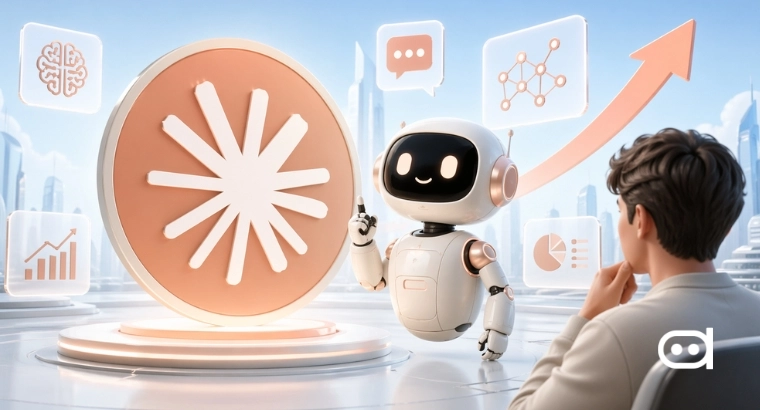
- Perplexity has rolled out “Personal Computer,” an AI-powered tool for Mac that lets you access files, control apps, automate workflows, and finish tasks just by using everyday language.
- This feature is made for macOS users and Perplexity suggests the Mac mini as the perfect always-on device.
- Instead of juggling apps, digging through folders, or flipping between browser tabs, you just tell the AI what you need using simple English.
More companies are working toward autonomous AI agents that handle workflows across apps, files, and web services. To cater for such use case, Perplexity’s Personal Computer claims to combine local Mac access with smart cloud processing, to let your AI organize files, summarize notes, compare documents with online research, or write email drafts.
Here’s what Perplexity Personal Computer does and how you can set it up on your Apple Macbook.
What Perplexity Personal Computer Actually Does
Perplexity Personal Computer basically acts as an intelligent operator for your Mac. Unlike a simple chat assistant, this system interacts directly with applications, files, and browser sessions, taking care of tasks on its own. You can ask it to organize folders, pull information from emails, compile web research, or run repetitive workflows. It works across multiple apps at the same time.
A big part of this launch is Perplexity’s push for the Mac mini as the go-to device for running their system non-stop. Since the Mac mini is small and energy-efficient, they see it as a perfect always-on AI workstation, always listening for remote commands and handling your tasks in the background.
Most of the heavy-duty AI work happens on Perplexity’s cloud servers, while your Mac handles app control, permissions, and local execution. The hybrid setup means more advanced AI skills, but it also brings up questions about privacy and relying on the cloud.
Personal Computer is now available to all users in a new Perplexity Mac app.
— Perplexity (@perplexity_ai) May 7, 2026
Personal Computer is an advanced version of Perplexity Computer.
It operates on any Mac, running tasks across your local files, native Mac apps, the web, and Perplexity’s secure servers. pic.twitter.com/M1QMZJuOyJ
Also read: Perplexity’s Comet AI Browser is Finally Coming to Android
Steps to Set Up Perplexity Personal Computer on Your Mac
To use Perplexity Personal Computer on macOS, you need to set up system permissions and teach the AI which apps and workflows it can access. Once you’ve done that, the platform lets you automate your daily tasks with simple text instructions.
Step-1
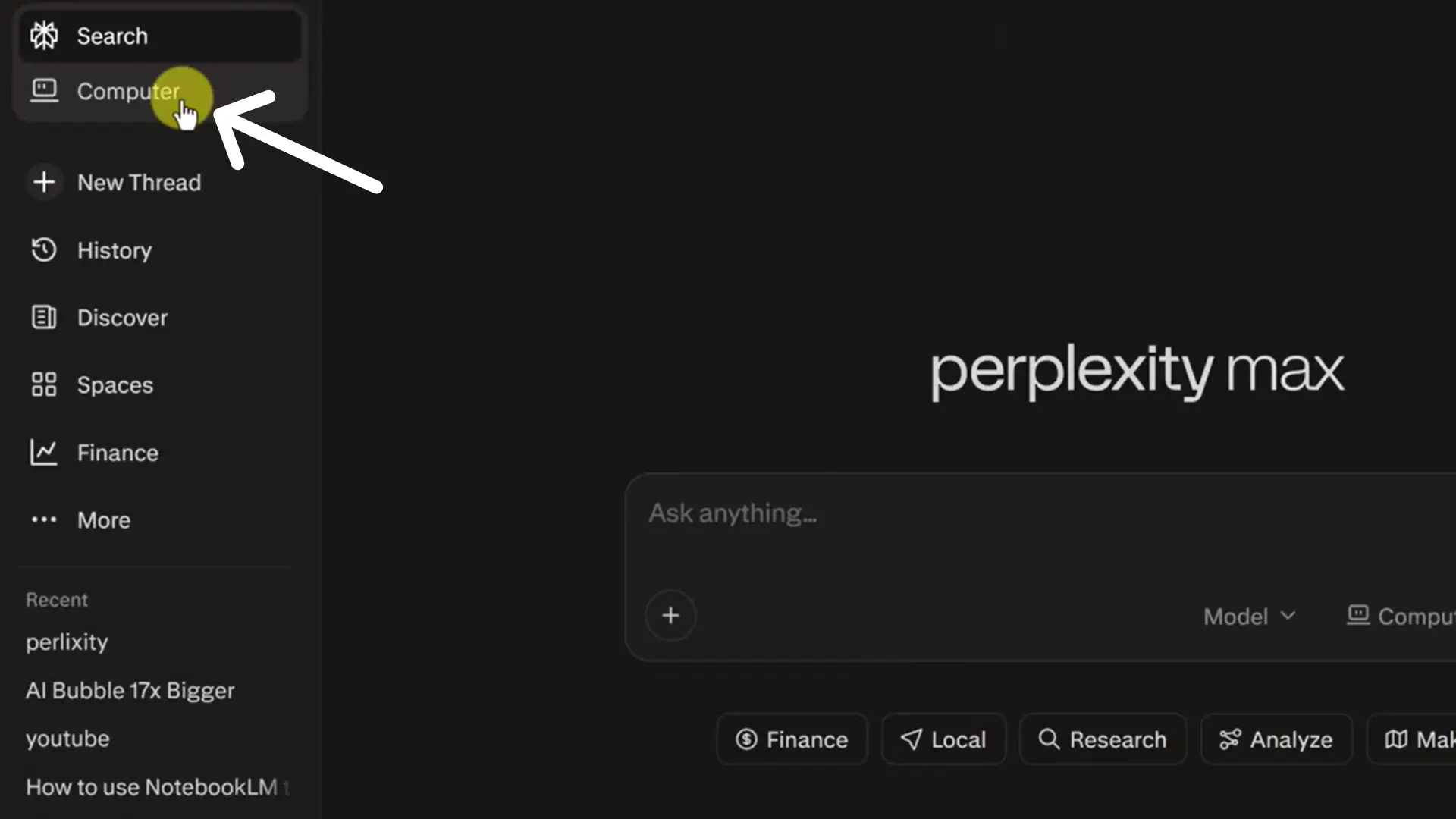
Download the Perplexity Mac app from the official Personal Computer setup page. Sign in using your Perplexity account credentials. Access to Personal Computer currently requires a paid Perplexity subscription.
After logging in, the app will initialize the Personal Computer workspace inside the desktop.
Step-2
Enable Accessibility permissions on macOS.
Go to: System Settings > Privacy & Security > Accessibility
Then enable Perplexity from the list of allowed applications.
Step-3
Grant Full Disk Access so the AI can read, organize, and search local files stored on the Mac.
Go to: System Settings > Privacy & Security > Full Disk Access
Step-4
Activate Personal Computer using the default keyboard shortcut by pressing both Command keys simultaneously.
This opens the floating task bar that appears on top of the desktop and allows users to interact with the AI from anywhere inside macOS.
Step-5
Connect apps and services that the AI can control.
Personal Computer supports native macOS apps such as Finder, Mail, Notes, Messages, and browser workflows through the built-in Comet browser integration.
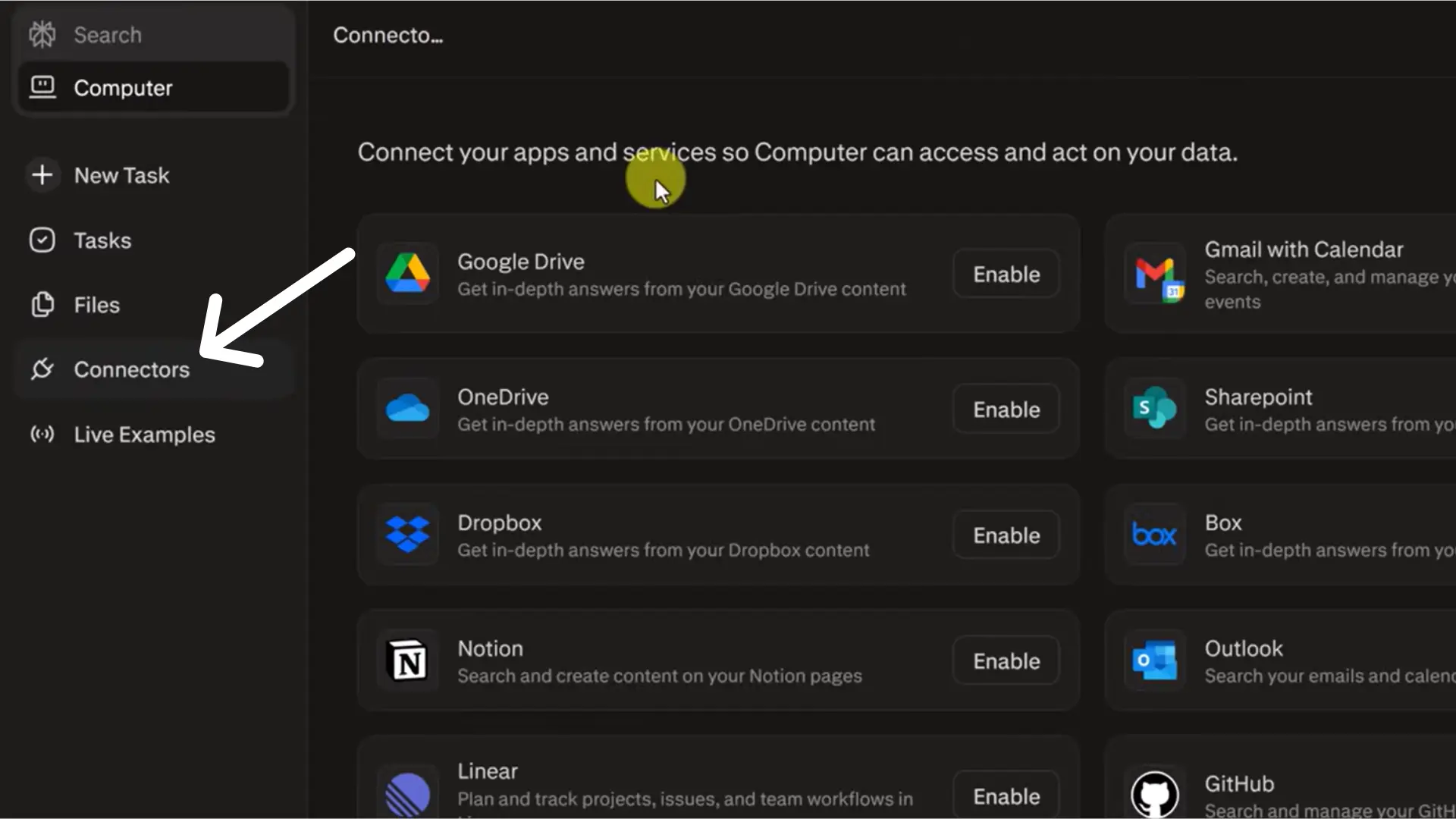
Once you’ve finished setup, you can start automating your workflows using natural language or voice commands and enter them right in the Personal Computer interface. Before it does anything sensitive like working with files, emails, or making system changes, Perplexity shows you confirmation prompts and an execution plan, so you have a chance to review and approve the task first. If you prefer, you can use voice mode for hands-free interaction, or trigger it remotely from a device like your iPhone.
Conclusion
Perplexity’s Personal Computer is a clear sign that AI is moving from assistant to operator. By plugging directly into macOS, it aims to make life easier, simplifying how users handle files, apps, research, and repeat workflows using plain language. Privacy, reliability, and cloud dependence are still challenges but if these systems keep getting better, they could completely change how we use personal computers in the future.