Key Highlights:
- Opera introduces a dedicated Ask AI option on Android, making it easier to switch between regular search and AI-powered queries.
- You can attach PDFs, images, and camera photos to prompts, which enables you to take help in more real-life AI-powered tasks.
- The browser can use the current tab as context while maintaining strict privacy with encrypted, tab-limited data handling.
The mobile browser space is getting increasingly crowded, and with AI now entering the mix, more companies are introducing new concepts where AI handles the browsing for you and helps save time. Among the top browsers, you have Google Chrome, Microsoft Edge, Opera, and many others. With the increasing competition, Opera has started stuffing useful AI features to stay relevant in the ongoing race.
As part of that effort, Opera has rolled out a new update today, which brings a much easier and more flexible way of invoking AI inside the browser. As someone who bounces between desktop browsing and quick mobile lookups, this consistency matters more than Opera admits.
Here’s how Opera’s new Ask AI feature enhances mobile browsing
One of the notable additions from this update is a dedicated Ask AI option, which sits right next to traditional web search. It instantly makes switching between normal queries and AI-powered questions more intuitive. You don’t have to juggle hidden menus or toggles. Opera says this change mirrors the flow of its flagship desktop browser, Opera One, which already uses AI as a key feature.
The new Ask AI bar doesn’t just let you ask questions by typing prompts. It now also supports file attachments, including PDFs, images, and snapshots from your camera. This makes mobile AI super useful for real-world applications like translating scanned documents, extracting data from a photo, or asking follow-up questions without hopping between different apps.
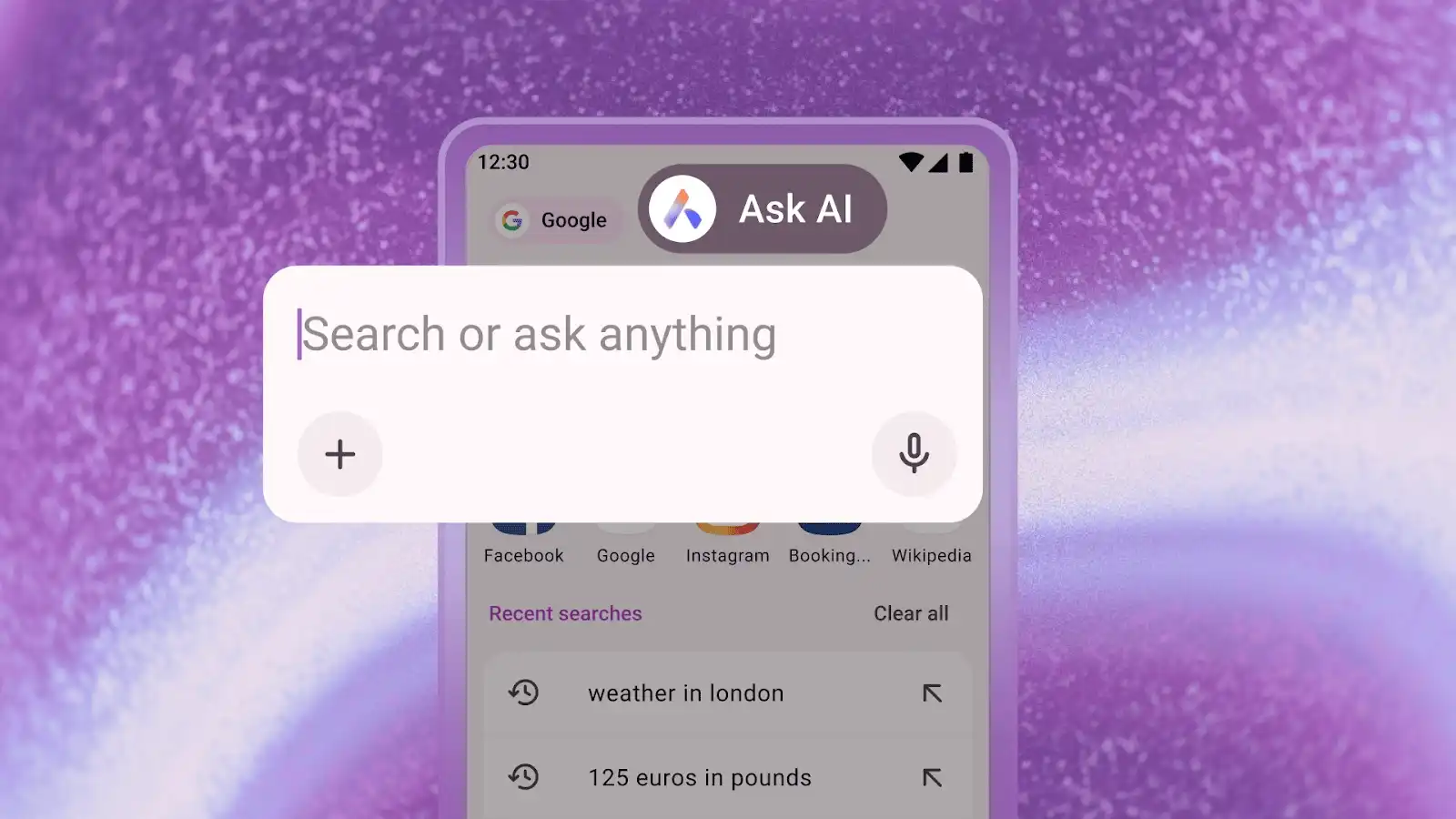
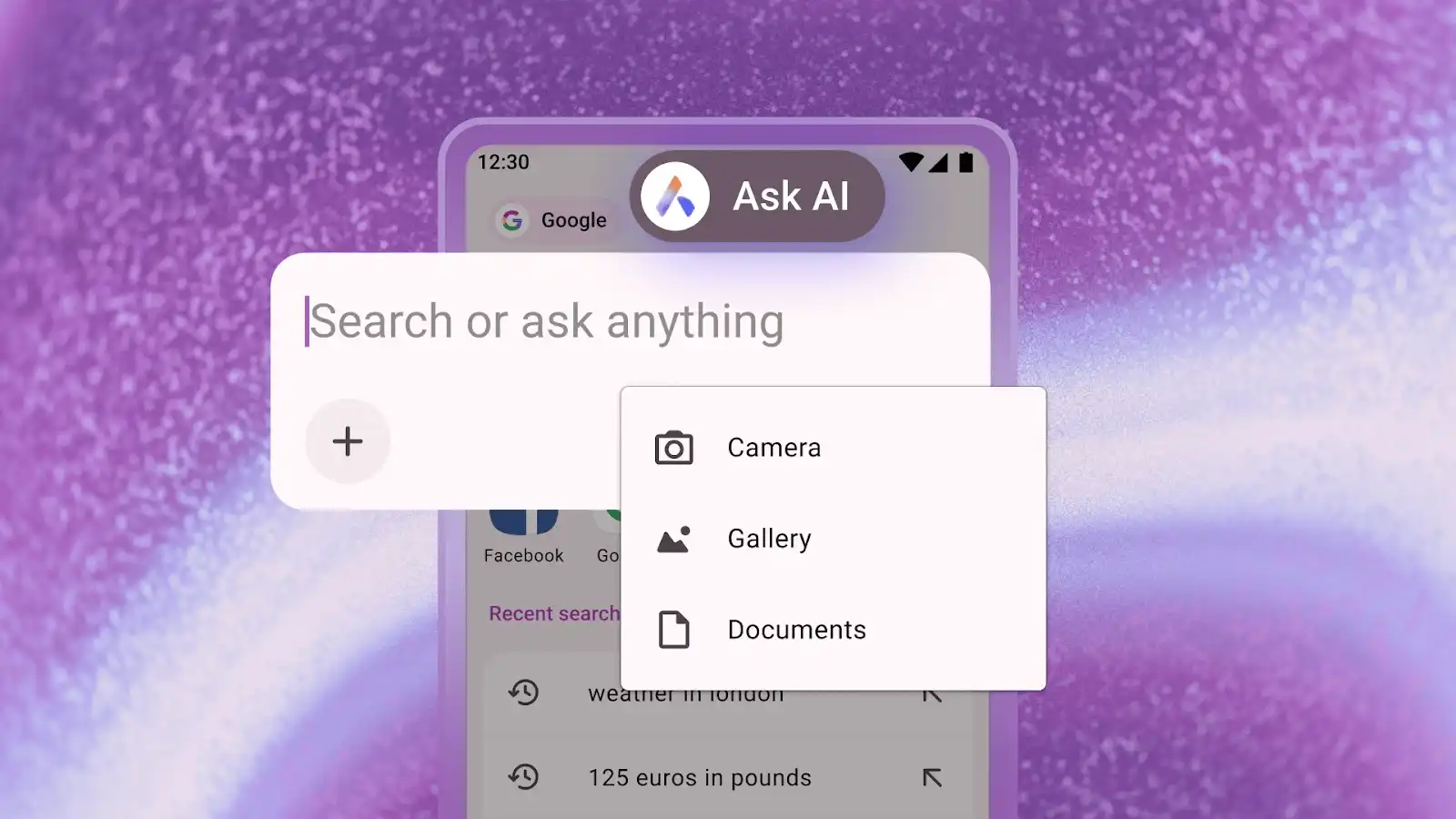
It works exactly the way you would expect on your Android device. All you have to do is open Opera on Android, tap on the search bar, and then select the Ask AI option to open the new search bar. Now when you tap on the search bar, you can choose between traditional web search (with any available search engine) or the AI Ask option.
You can even attach files to the search bar by accessing the Ask AI interface and then clicking the plus sign located under the text input field. Next, you can choose to attach a document, an image, or take a picture from your phone’s camera.
You may also like: Opera integrates latest Gemini models to supercharge its browser AIAsk AI Opera
Contextual AI and privacy built for mobile users
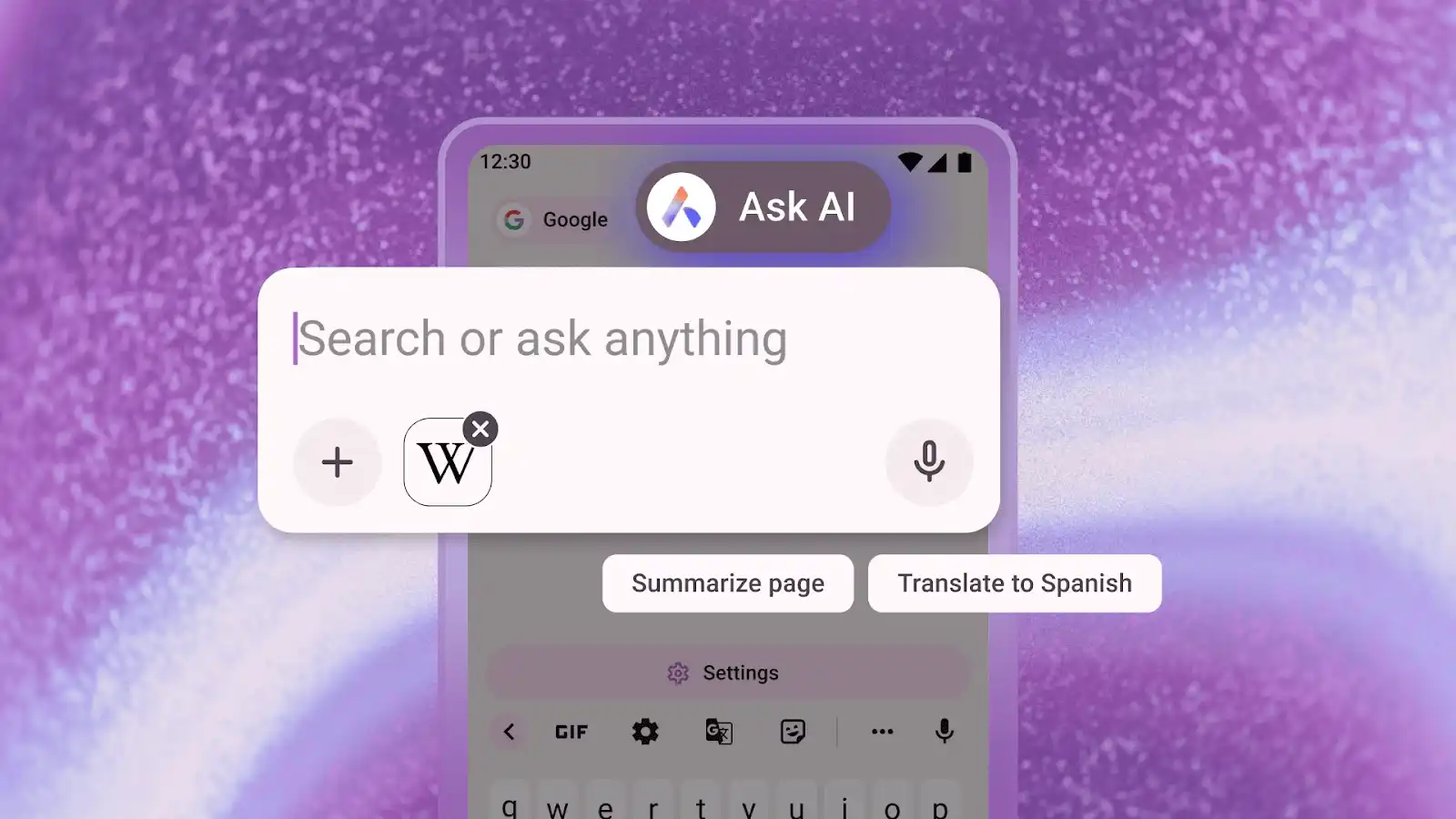
But that’s not all. With Ask AI, Opera users on Android can now use the tab they are browsing as context for a prompt. This enables users to better understand the page they’re on. For example, if you’re reading something about a large language model and want a certain section explained, the AI can help you with it.
To use the current tab as context, tap the three dots at the top right of the browser and select the Ask AI option. The search bar will appear, and you’ll see the webpage you were on attached to the chat. The visible page will now be used as context for your prompt. You can then ask questions by typing or by tapping the mic icon.
With AI in Opera, privacy and security become important. Opera says its browser-based AI only understands the context within the specific tab being used. The AI can’t access information outside of it. Page context data is only sent to the AI engine when necessary to perform the requested task. Opera also says it does not send your browsing activity or history to the AI engine.
Your data is encrypted, so no one at Opera can read it. It may be stored for up to 30 days so you can return to the conversation for ongoing tasks. Opera notes that it never uses your conversation data for AI training, advertising, or any other purposes. All such data is deleted automatically after the 30-day period.
You can get the latest update by simply updating your Opera app from the Google Play Store. If you don’t have it yet, you can download the app and it will install the updated version automatically.