Key Highlights
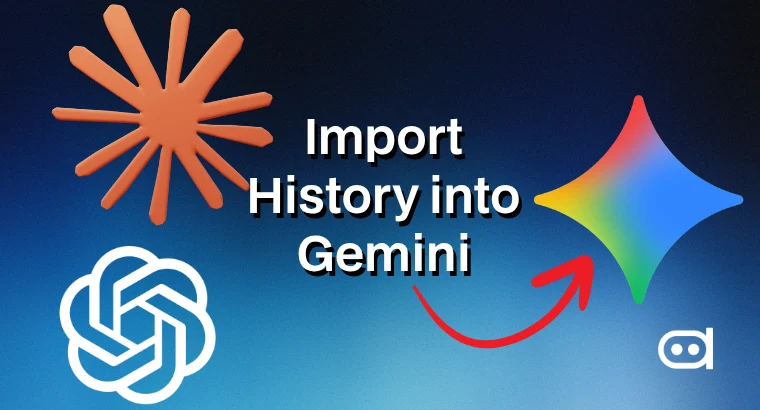
- Google has launched two new import tools for Gemini: one that transfers your personalised memory from another AI app, and another that imports your full chat history via ZIP file upload
- The tools work with ChatGPT and Claude explicitly, and are available now to all consumer accounts globally, except EEA, Switzerland, and the UK due to local data regulations
- Imported chats appear in Gemini’s side panel with a distinct icon, can be searched, and can be deleted in batches at any time.
Switching AI assistants has always come with the same problem – “your new app knows nothing about you.” If you have spent months using ChatGPT or Claude, those apps have built up a working understanding of your preferences, projects, and context. Moving to Gemini historically meant re-establishing all of that manually. Google has now built two tools specifically to remove that barrier.
Here is how both features work and how to use them.
Feature 1 – How to Import Your Memory
Memory import transfers the personal context your current AI app has built about you – your interests, preferences, relationships, and background details straight into Gemini. It works through a prompt-copy method rather than a direct backend sync.
Steps:
- Open the Gemini app or gemini.google.com and go to Settings and Help
- Select Import memory to Gemini
- Gemini will generate a suggested prompt. Copy it for the next step
- Open your current AI app (ChatGPT, Claude, or similar) and paste the prompt into a new chat
- The app will generate a structured summary of what it knows about you. Copy that response for the next step
- Return to Gemini, paste the response into the designated field, and click Add memory
Gemini will analyse the summary and save those details to your context immediately. Your next conversation will reflect what was imported.
Feature 2 – How to Import Your Chat History
Chat history import brings your full conversation archive across as a searchable record inside Gemini. You will need to export your data from your current AI app first.
Exporting from ChatGPT:
- Click your username at the bottom left
- Go to Settings then Data controls
- Click Export next to “Export data” and hit confirm. A download link will be sent to your email
Exporting from Claude:
- Click your username at the bottom left
- Go to Settings then Privacy
- Click Export next to “Export data” and select your date range. A download link will be sent to your email
Importing into Gemini:
- Go to gemini.google.com/import
- Under Import chats, click Add
- Select your downloaded ZIP file and upload
Imported chats appear in Gemini’s side panel with an import icon to distinguish them from native conversations. You can search through them or delete entire batches. The file size limit is 5 GB per file, and you can upload up to five ZIP files per day.
You may also like to read: Google Lyria 3 Pro Generates 3-Minute Tracks With a Licensing Claim
One Thing Worth Noting
Both features are currently unavailable in the EEA, Switzerland, and the UK. Google has not given a timeline for those regions, citing local data regulations as the reason for the exclusion.
The tools follow a similar move by Anthropic, which introduced its own memory import feature for Claude earlier this year. The direction across the AI industry is consistent: reducing switching costs to compete for users who have already invested time in a rival product. Whether that creates genuine portability or just makes it easier to accumulate data across platforms is a question regulators in excluded regions are likely already asking.